Bundles let you track a “finished” SKU (the bundle) that’s composed of multiple “component” SKUs (the individual items it contains). In the Portal, you link components to a bundle by creating a bundle relationship on the Bundles tab of an inventory item.
Instructions to use article templates
Before you begin
Make sure you have created the finished bundle item (the SKU customers buy) and each component item (the SKUs inside the bundle) in the Portal.
Confirm you have permission to edit inventory items.
Important

Component items often aren’t sold individually. If a component will not be listed or sold on its own, keep any “Create Listing on Channel” toggles off when creating the component item.
Step-by-step: Link components to a bundle
Step 1: Create the bundle item and component items (if they don’t already exist)
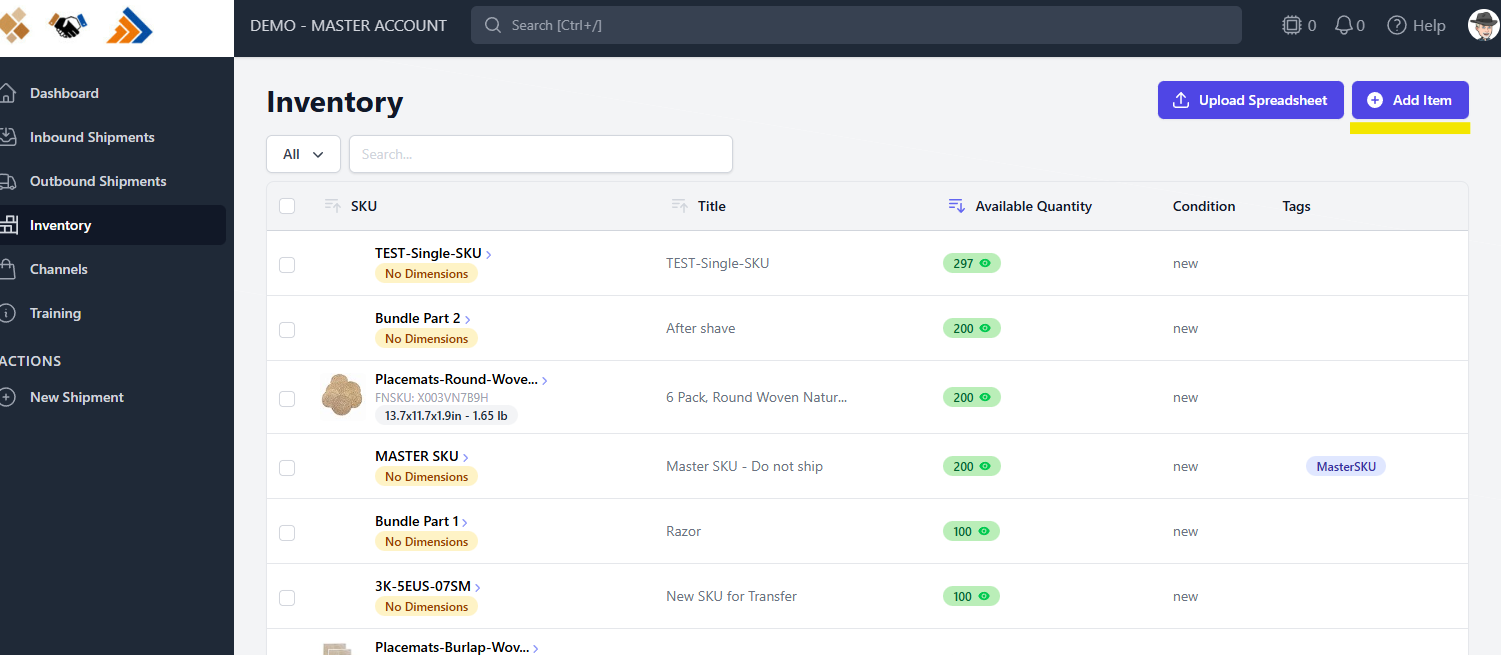
In the left navigation, click Inventory. Click Add item in the top-right corner.
Enter the Merchant SKU and Title, then click Save.
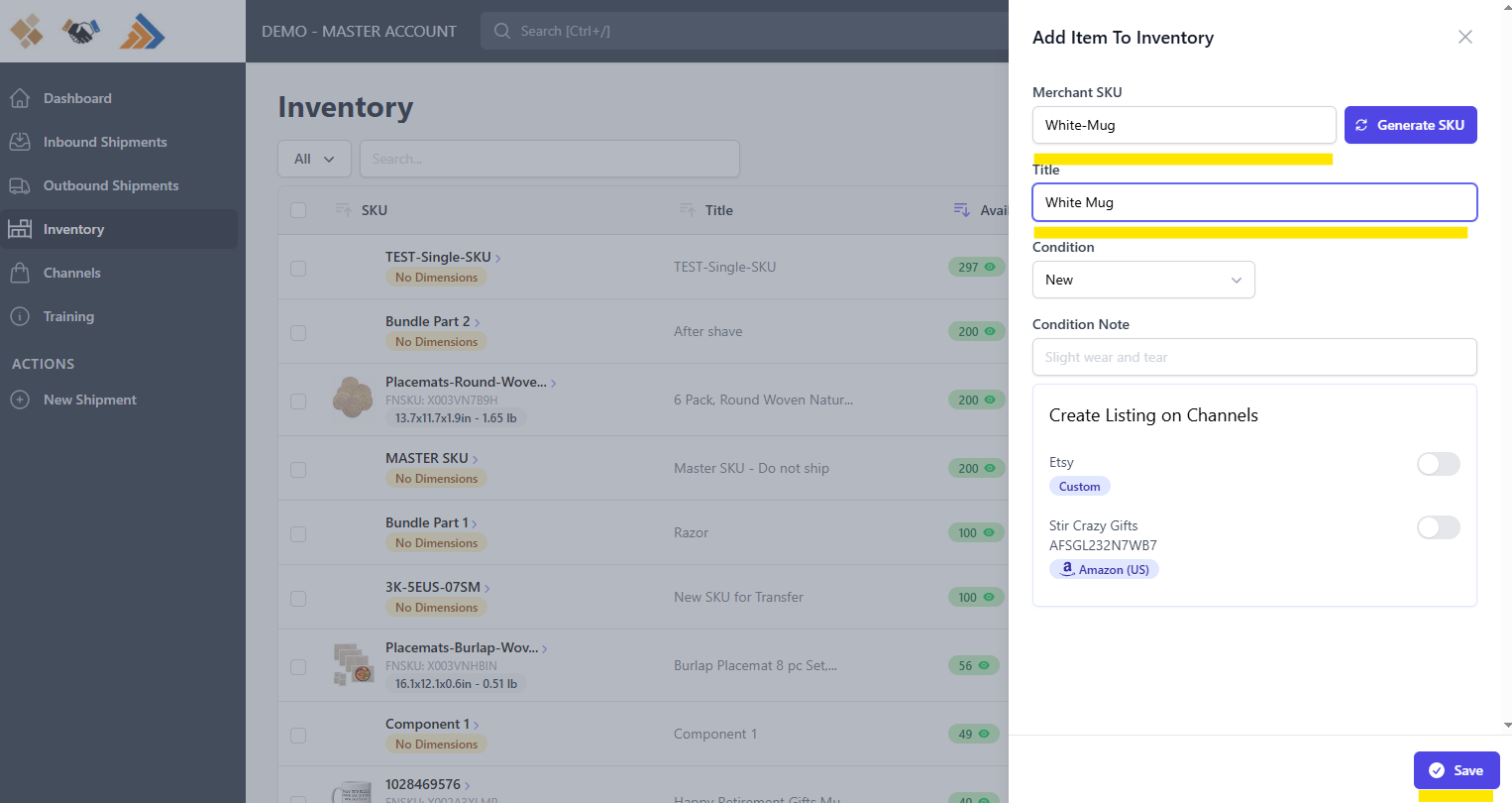
Example: Creating the component item “White Mug”
- Because “White Mug” will not be sold individually, do not create a listing on a channel (leave those toggles off).
Repeat until you’ve created:
All component SKUs (individual items), and
The finished bundle SKU (the item that represents the complete bundle)
Step 2: Open the finished bundle item you want to build
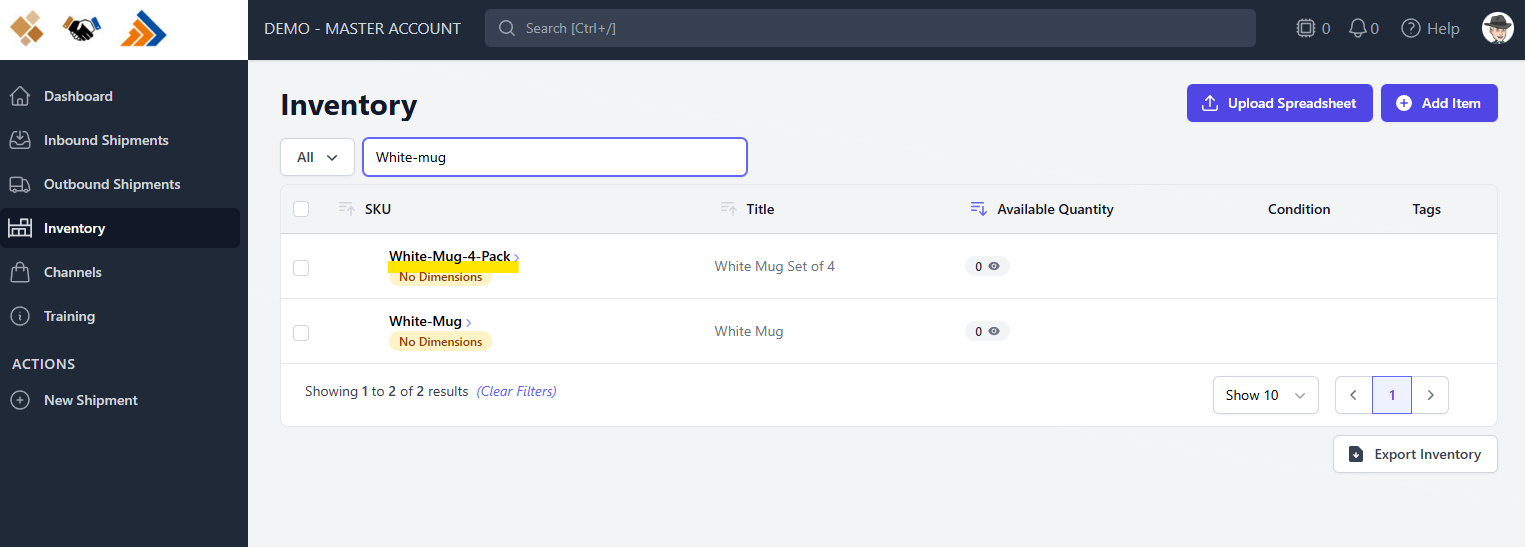
From Inventory, select the item you want to be the finished bundle.
For this example, select White Mug Set of 4. This opens the Inventory Detail screen for that SKU.
Step 3: Create the bundle relationship (link components to the finished bundle)
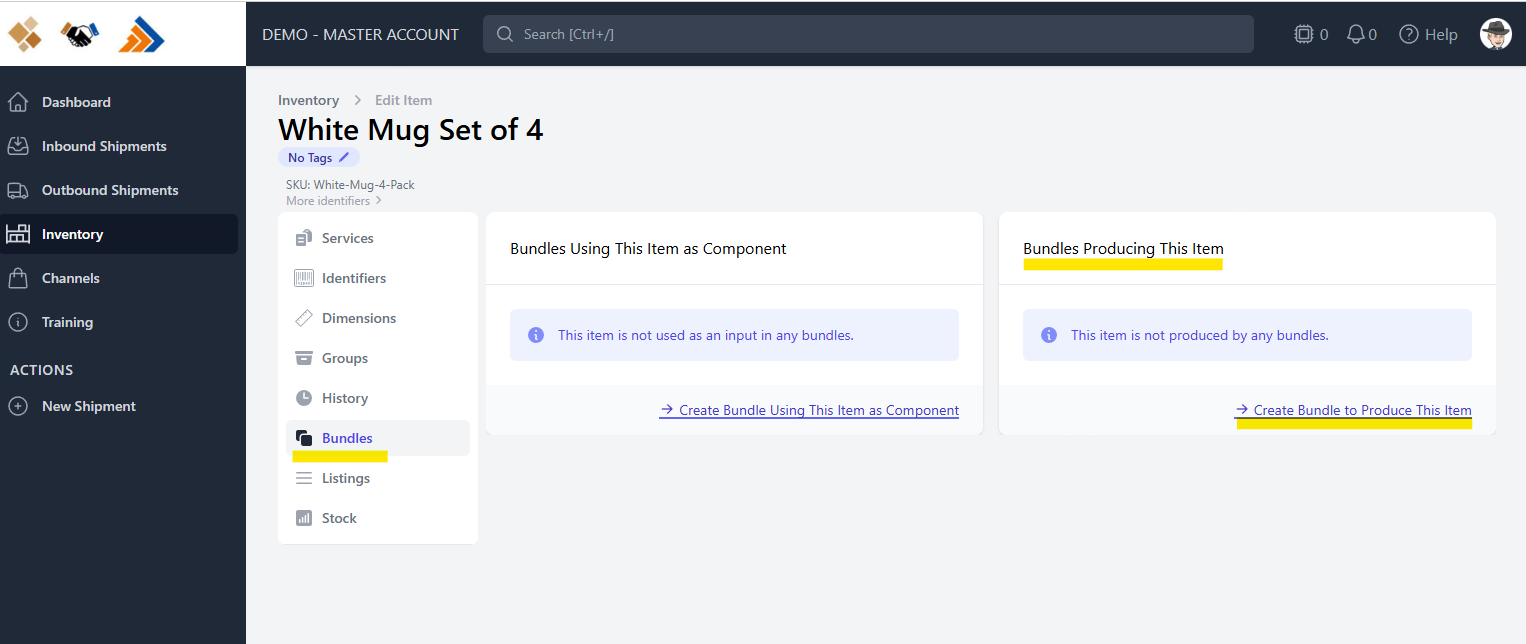
On the Inventory Detail screen, click the Bundles tab. You’ll see two sections:
Bundles Using This Item as Component
Bundles Producing This Item
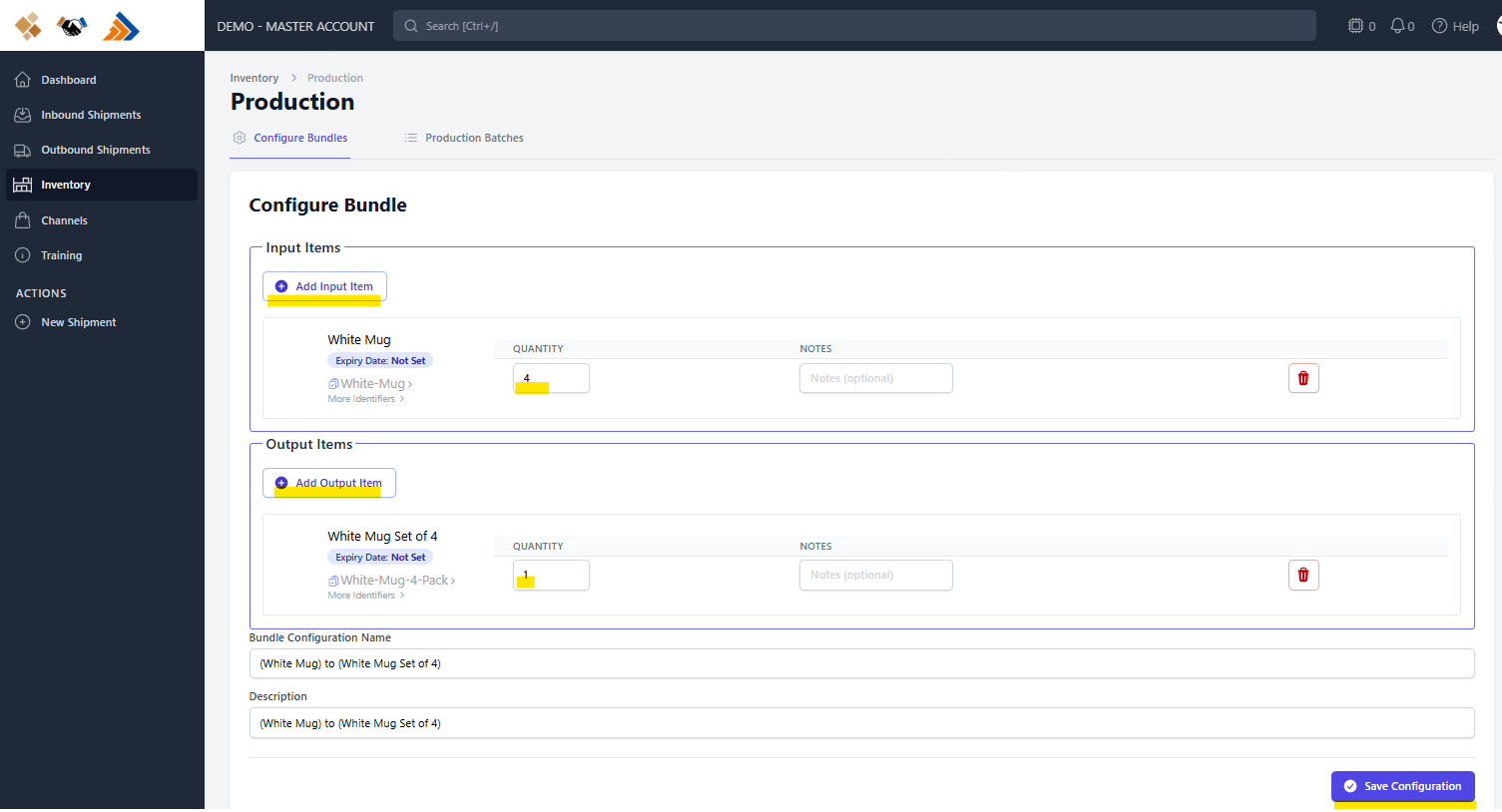
Because you’re viewing the finished bundle item, use Bundles Producing This Item. Click Create Bundle to Produce This Item.
Add the Input Items (the components):
Search by SKU and add each component item to the Input Items section.
Update the Quantity for each component to match what’s included in the finished bundle.
Example: If the bundle includes 4 mugs, set the White Mug input quantity to 4.
Set the Output Items (the finished bundle):
Select the finished bundle SKU (e.g., White Mug Set of 4)
Set the output quantity to 1
Click Save.
Tip

Think of it like a recipe: Input Items are the ingredients (components), and Output Items are what you produce (the bundle).
Confirm the bundle was linked correctly
After saving:
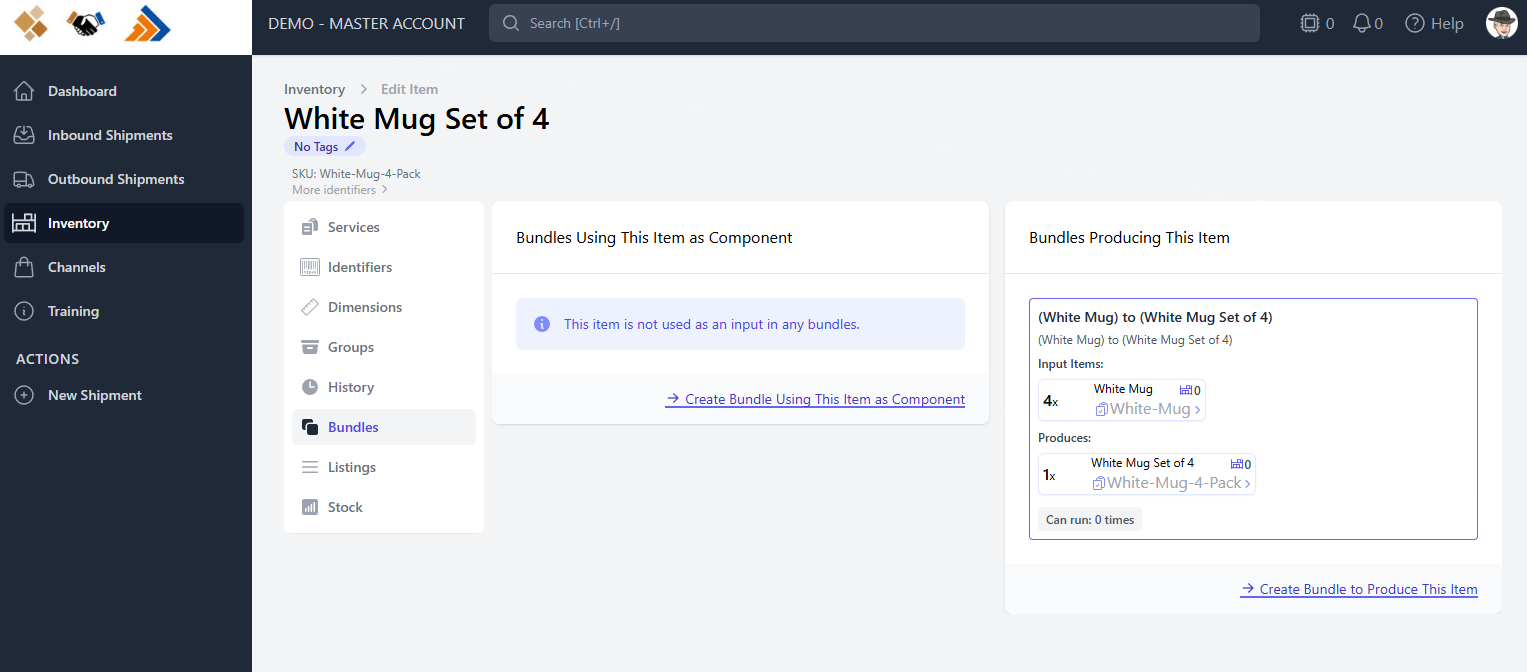
Go back to the Bundles tab on the finished bundle SKU.
You should see the bundle you created listed under Bundles Producing This Item.
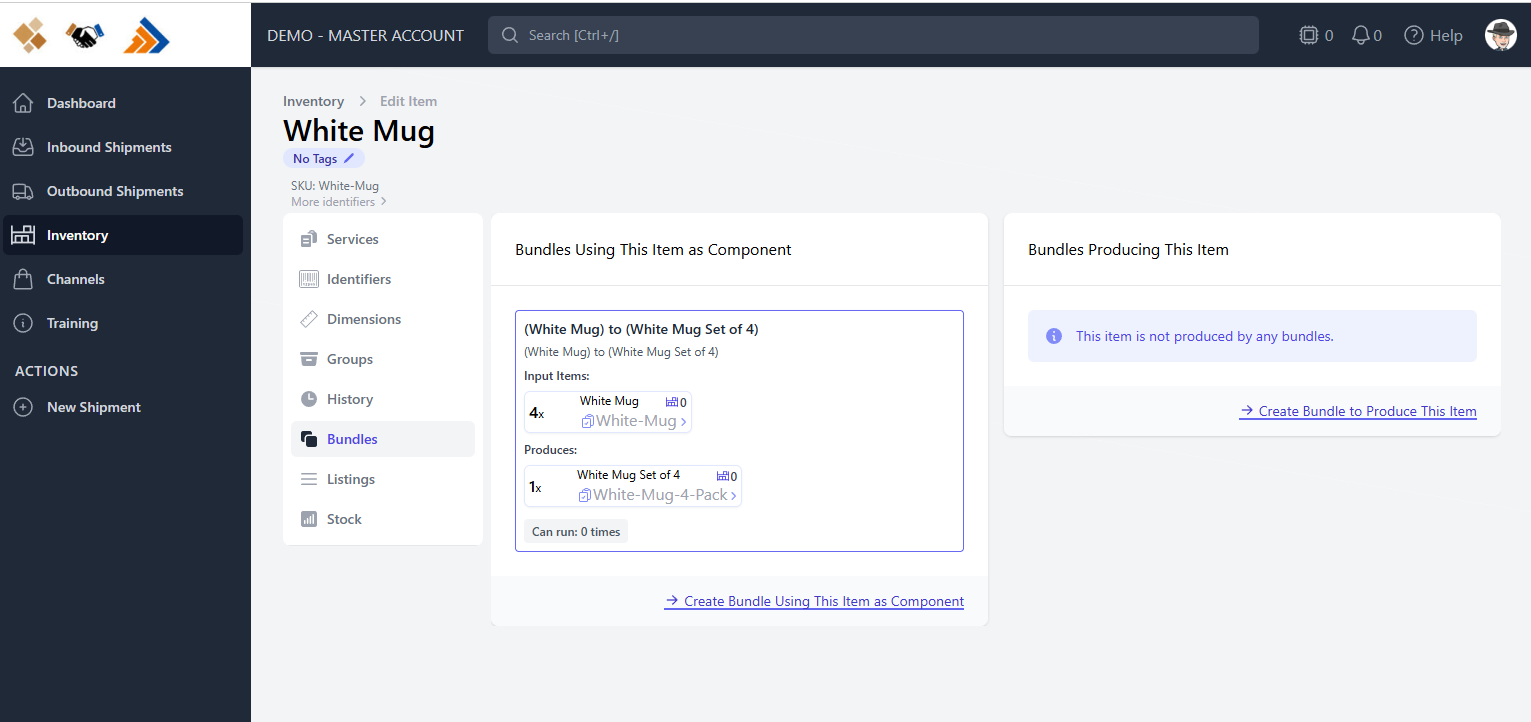
Open one of the component SKUs (for example, White Mug) and go to its Bundles tab.
You should see the same bundle listed under Bundles Using This Item as Component.
Was this article helpful?
That’s Great!
Thank you for your feedback
Sorry! We couldn't be helpful
Thank you for your feedback
Feedback sent
We appreciate your effort and will try to fix the article